
Getting started with the guest register
One afternoon with the Ministry's email at hand and your phone charged. When you finish, the next guest who arrives goes to the Ministry from your phone. If your place is in Portugal, the register goes to SIBA and the path is shorter: see the end.
Before you open the app
Your property needs to be registered in SES.HOSPEDAJES, the Ministry of the Interior's system, with the box «Envío de comunicaciones por servicio web» ticked. Without that box, no program can send your guest register, this app included. The person responsible for the property registers it, with Cl@ve or a digital certificate.
Registration gives you four values. The app asks for them with these names:
Both codes are numbers only (up to 10 digits). Username and password have no spaces.
Also
- Your business's registered name and NIF or CIF, for the legal agreements.
- An iPhone on iOS 16 or later, or an Android on 7 or later.
- In the Basque Country the app doesn't send to SES.HOSPEDAJES: there you can use Live Bed Count and bed requests.
Landlord code (código de arrendador). The Ministry emailed it to you when you signed up for SES.HOSPEDAJES. Search your email for "SES.HOSPEDAJES" or "código de arrendador". If you already used another program, it is the same code.
Establishment code (código de establecimiento). It came in the same email from the Ministry (one per accommodation). It also appears in the SES.HOSPEDAJES portal, in the list of your establishments.
Web service username. It is not the username you use to log in to the portal. It is the "web service" one: you create it inside the SES.HOSPEDAJES portal. If another program already sent your reports, you can use the same one.
Web service password. The password for that "web service", not the portal one. It is created together with the username inside the SES.HOSPEDAJES portal.
In the app, step by step
At the top of each screen you'll see "Step X of 7".
Step 1 of 7
Account
"Create Account" with your email and a password. You get an email to confirm it.
Step 2 of 7
Your accommodation
"Accommodation name" (pilgrims will see it), address, city, postcode, country, contact email and phone. Tap "Save and continue".
Step 3 of 7
Service
Under "What do you want to use?" choose "Guest registration (SES)". It includes Live Bed Count.
Step 4 of 7
Business details
"Your Business Details": registered business name and NIF / CIF. Not shared publicly.
Step 5 of 7
Documents
You read and accept the "Terms of Service" and the "Privacy Policy", and sign the "Data Processing Agreement" with your finger ("Sign & Accept"). A copy comes to your email.
Step 6 of 7
Ministry details
In "Your Ministry details" you type the four values and choose "Where are reports sent?": "Production (real)" or "Testing". Tap "Check and save". If you don't have them yet, "Not now" and carry on; the app asks again later.
Step 7 of 7
Encryption password
In "Protect your data" you create the password that encrypts your guests' records: at least 8 characters, with an uppercase letter, a lowercase letter and a number. You can add a hint (without the password in it). The app then gives you a "Recovery Code": save it with "Save Recovery Code" and confirm "I have saved my recovery code".
Important, said plainly. If you lose the encryption password and also the recovery code, your guests' stored records can't be recovered. Nobody can, me included: that's the price of nobody else being able to read them.
- Until steps 6 and 7 are done, the dashboard's "SCAN QR" and "Manual Entry" buttons stay disabled.
- Shortcut from your computer. If you have the four values on your computer, Settings → SES has "Scan from the website": you open the QR page in your browser and scan it with your phone, without typing the web-service password. The code is made in your browser and the app doesn't send it to any server.
What "Check and save" checks
ExampleWhat happenedTEST MODE
Tap "Check and save" to see what gets checked.
- The Ministry accepts the web-service username and password.
- The four values, saved encrypted on this phone.
- Landlord and establishment codes: the test doesn't check them. They show on the first submission.
- To my server: nothing.
It checks
that the Ministry accepts your web-service username and password in the environment you chose. The app asks the Ministry for its list of document types with those details. If the Ministry sends it back, the four values are saved encrypted on this phone only, in the system keychain. Only one thing goes to my server, and only if you chose "Testing": that your account is in testing.
It doesn't check
- The landlord code or the establishment code. The Ministry has no way to check them without a real submission, so a mistake in either doesn't show in the test: it shows when you send.
- Any guest data: the test sends no register.
In Settings → SES, the "Test Connection" button runs the same test, and when you save a change to those details the app runs it again before saving.
With "Testing", reports go to the Ministry's test server (pre-ses.mir.es) and do not count as really sent. The app reminds you with "TEST MODE" at the top.
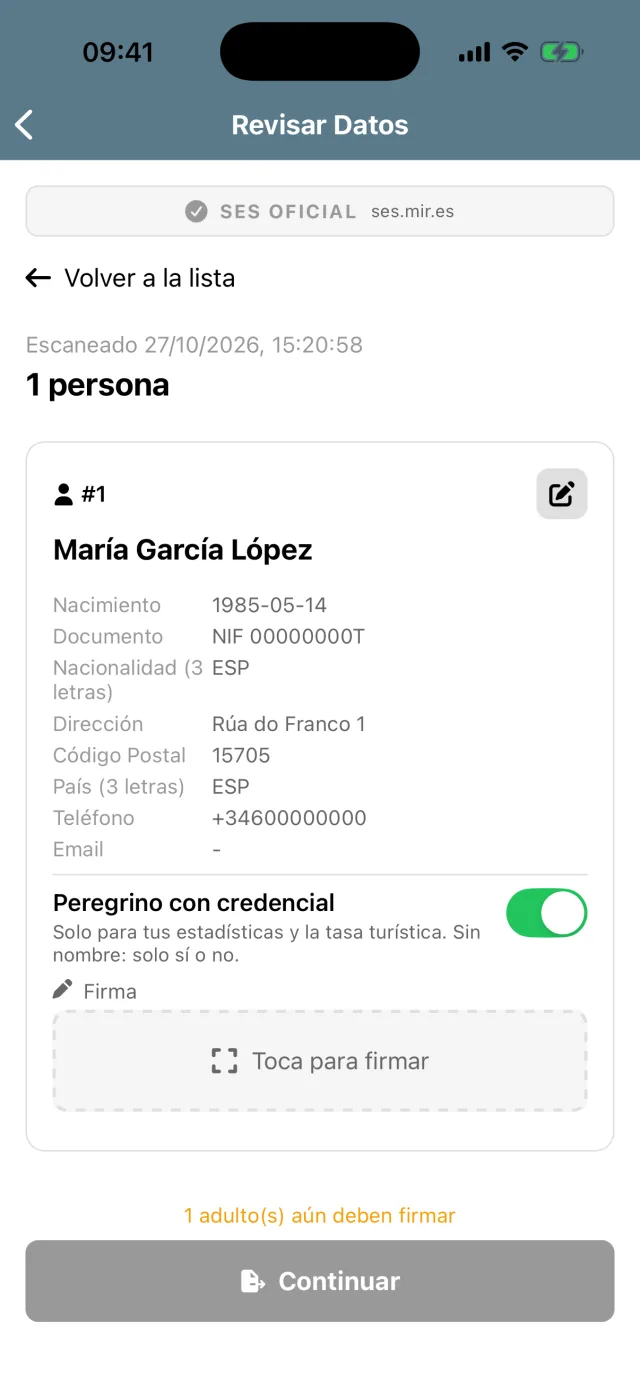
Your first register
"SCAN QR"
"Point at the pilgrim's QR code". If the QR is old, the app warns that the details may be out of date, and if it's too old it refuses it and asks for the pilgrim to make a new one. No QR? "Manual Entry".
Review
You see each guest's details. If one is missing something the Ministry requires, the app flags it: "Ask the pilgrim to correct it in their app (or correct it here)." If the QR has no country of residence, the app uses the nationality and tells you, so you can change it if they live elsewhere.
"Submit to SES"
Check-in and check-out date and time, payment type and a reference (the app suggests one). Send.
Result
"Submitted successfully" with the batch number, and "Data saved encrypted for legal compliance (3 years)". If the Ministry is slow, the app says so: "Status pending. The ministry may take several minutes. Status will be checked automatically next time you open the app."
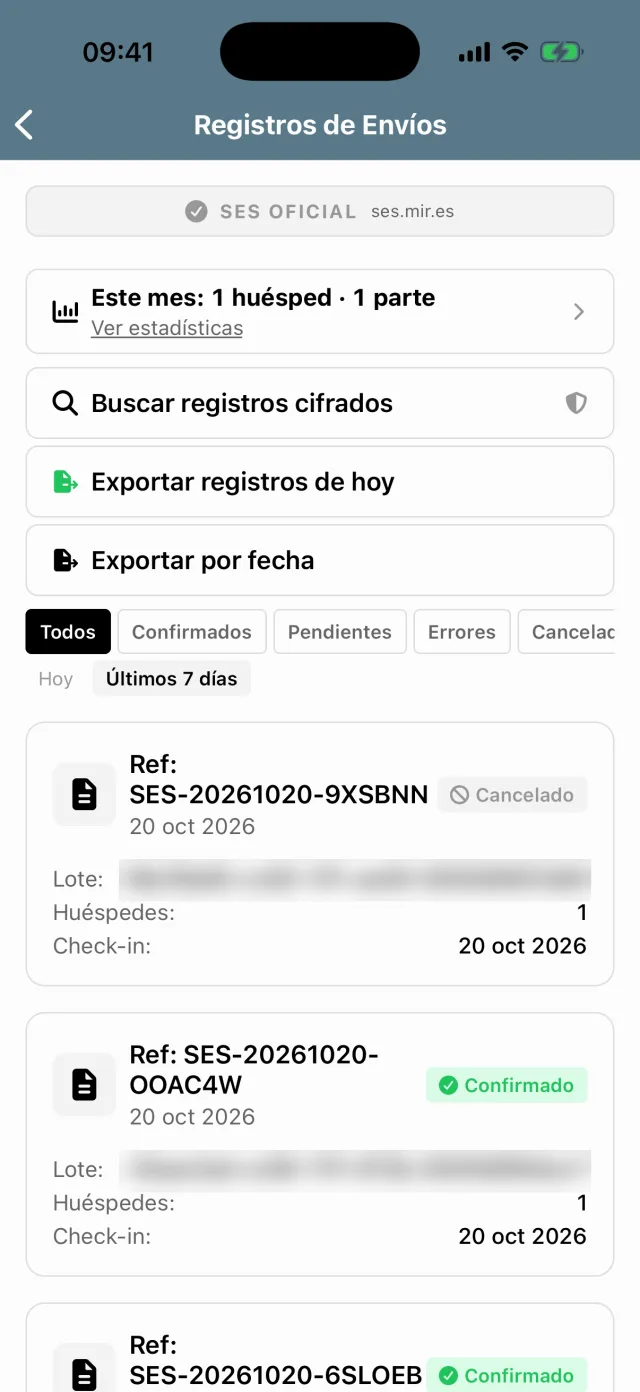
"Submissions"
Your history: "Query SES Status", "Cancel Submission", "Correct & Resubmit". And "Export guest records" if the authorities ask: the records are decrypted on the phone to build the file.
When the Ministry says no
The app shows you the Ministry's own words first, as they are, after "The Ministry says:". If the Ministry gives no reason, it says so: "The Ministry refused the send (HTTP 500) without saying why. Send it again; if it keeps failing, tell me." When it recognises the problem, it adds what to do and which guest it is ("Guest 2: …").
| If the Ministry mentions… | The app tells you | What you do |
|---|---|---|
| a wrong username or password | "The Ministry didn't accept your SES.HOSPEDAJES user or password." | "Check your Ministry user, password and codes in Settings → SES, then send again." |
| a batch or communication that already exists | "These guests were already sent to the Ministry." | "Nothing to do: the Ministry already has this registration." |
| the email | "the Ministry rejected the email address." | "Ask the pilgrim to fix the email in their app (it needs one @ and a dot after it, with no ñ, accents or spaces), or correct it here, then send again." |
| the postal code | "the Ministry doesn't recognise the Spanish postal code." | "A Spanish postal code has 5 digits and starts 01–52 (e.g. 27600). Correct it and send again." |
| the document type (CIF) | "the document type was CIF, which is only for companies." | "Change the document type to DNI/NIF, NIE, Passport or Other, then send again." |
| an empty date | "a date was empty or not valid (usually the date of birth)." | Check the date of birth and the check-in and check-out dates. |
| the address country | "the address had no country." | "Add the country to the guest's address and send again." |
| no answer | "The Ministry isn't responding right now." | "Try again later. The guests' data is saved safely and encrypted, so nothing is lost." |
When the Ministry details are checked
A refusal at step 6 shows as "The Ministry did not accept these details", with the reason. If the Ministry gives its own text, the app shows that; if not:
- 401 "Invalid credentials. Check your username and password."
- 403 "Access denied. Your account may not have permission to access this service."
- 404 "The SES service endpoint was not found. Check if the correct environment (test/production) is selected."
- 5xx "The SES server rejected the request. Check your credentials and web service permissions in the Hospedajes portal."
- Network "Could not reach the server. Check your internet connection."
In Portugal: SIBA
What you need
- "NIPC / NIF" (9 digits), the "Establishment number" (2 digits; the first one is 00) and the "Access key (chave de acesso)", the one in SIBA's activation letter.
- Before your first real submission, ask siba@ssi.gov.pt to switch your send mode to "web service". Otherwise SIBA refuses submissions from the app.
- The establishment details: name, short name (15 characters at most), address, town, postcode (0000-000), contact person and phone.
The path is shorter. After you choose Portugal under "Where is your accommodation?" and accept the documents, the app opens "SIBA (Portugal)":
"SIBA credentials": NIPC / NIF, establishment number and access key. Stored only on this phone (system keychain), never on the Wise Pilgrim server.
"Establishment details": SIBA receives them with every submission, which also keeps them up to date there.
"Test connection": the app sends SIBA a file with the establishment details and no guests. If SIBA accepts it: "Connected: SIBA accepted your credentials." A wrong NIPC, establishment number or key makes SIBA refuse it.
"Save".
There's no encryption password in Portugal because the app keeps no copy of the guests: after a submission only the record of the submission is left (how many, dates, file number, status) and counts with no names for your statistics. Portuguese guests are not reported. To correct a submission already sent, use the SIBA portal (siba.ssi.gov.pt).
Stuck on a step? Write to me at editor@wisepilgrim.com and I'll help you through it.